How to Start an Exam
Starting a Mock Exam
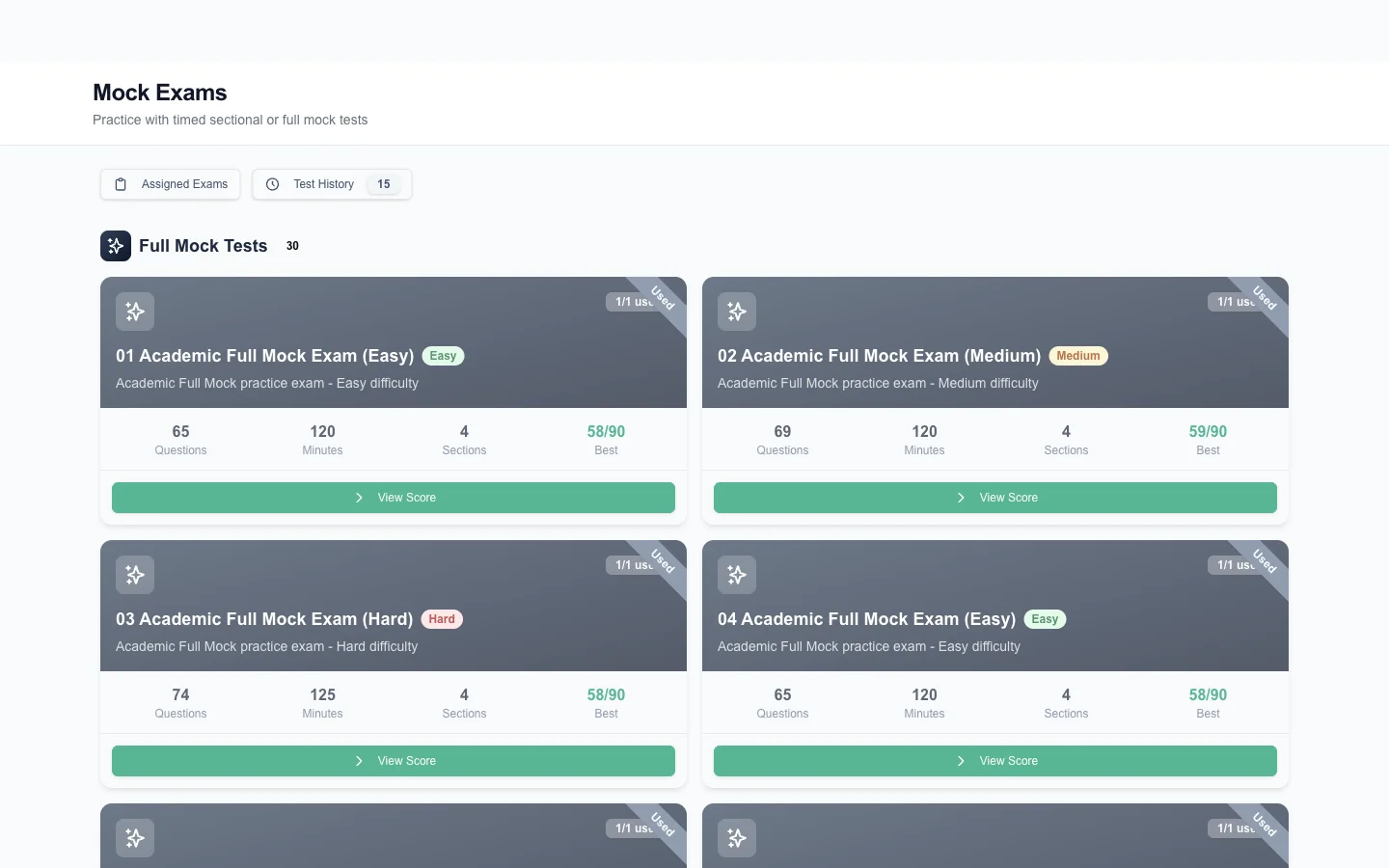
You can access all available mock exams from the Mock Exams section, accessible via the dashboard or top navigation. Each exam is displayed as a card with important status information.
Exam Card Statuses
- Available — You can start this exam. Click the card to begin.
- Locked — This exam is not available on your current plan. Upgrade to unlock it.
- In Progress — You have started but not completed this exam. Click to resume.
- Completed — You have finished this exam. View results or retake if attempts remain.
PTE Introduction Screens
When you start an exam, you will go through a series of introduction screens that mirror the real PTE experience:
- NDA Agreement — Acknowledge the non-disclosure agreement (just like the real exam).
- Headset Check — Confirm your headset or speakers are working correctly.
- Microphone Check — Record a short sample to verify your microphone is picking up audio clearly.
- Keyboard Check — Verify your keyboard is functioning properly.
- Test Information — Review the exam structure and time allocations before beginning.
Important Note
If you already have another exam in progress and start a new one, the previous exam will be automatically paused. You can return to it later from the exam listing page. Only one exam can be actively in progress at a time.