Understanding the Dashboard
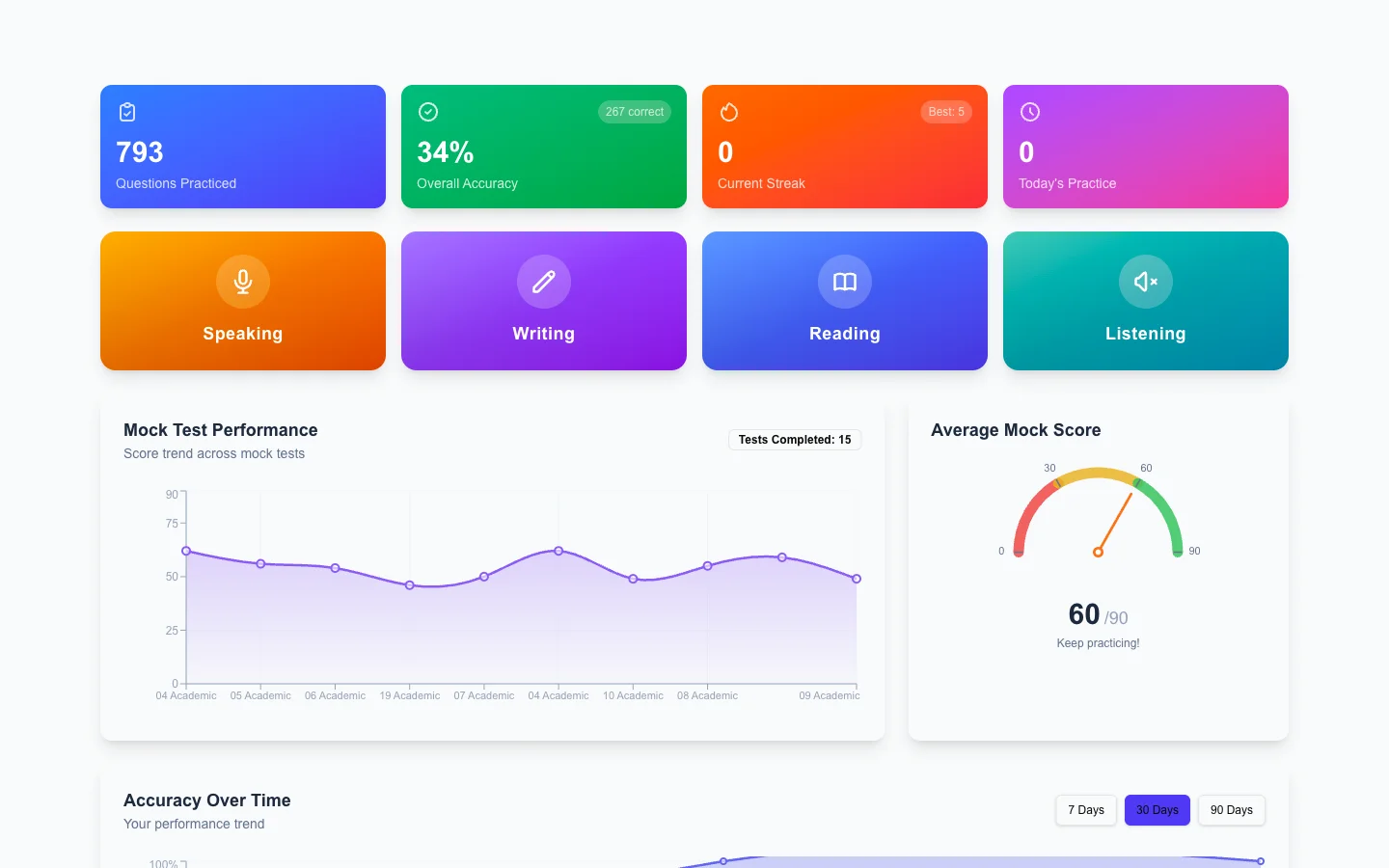
Your Dashboard at a Glance
After logging in, you land on the ClearMyPTE dashboard. This is your central hub for everything — practicing questions, taking mock exams, and tracking your progress.
Key Dashboard Sections
- Quick Access Buttons — Jump straight into Practice Mode or start a Mock Exam with a single click.
- Subscription Status Banner — A prominent banner at the top shows your current plan, remaining mock tests, and AI evaluation credits so you always know where you stand.
- Recent Activity — See your most recent practice sessions and exam attempts to quickly pick up where you left off.
- Notification Bell — The bell icon in the top navigation shows your unread notification count. Click it to see updates about referral rewards, plan changes, score completions, and more.
Navigation
The top navigation bar gives you access to all major sections of the platform: Practice, Mock Exams, Pricing, Refer & Earn, and your Profile. On mobile devices, the navigation collapses into a hamburger menu for a clean, distraction-free experience.
Spend a few minutes exploring the dashboard when you first log in. Familiarity with the layout will help you navigate efficiently and make the most of your PTE preparation time.